How to Cite Different Source Types in MLA
Comprehensive guide to generating MLA citations for books, journals, websites, reports, videos, podcasts, and images with MLA 9 rules.

Research rarely relies on one kind of source. In a single paper, you might cite a book, a journal, a video, and a government report. Each one follows a slightly different pattern. This guide explains how to cite different sources in MLA with a generator. You’ll learn to pick the right source type, fill the right fields, and review each result with confidence.
What Source Types Can an MLA Citation Generator Recognize?
Most tools offer a menu of source types. Books, journals, websites, and videos are standard. Many also include podcasts, images, reports, and social media posts.
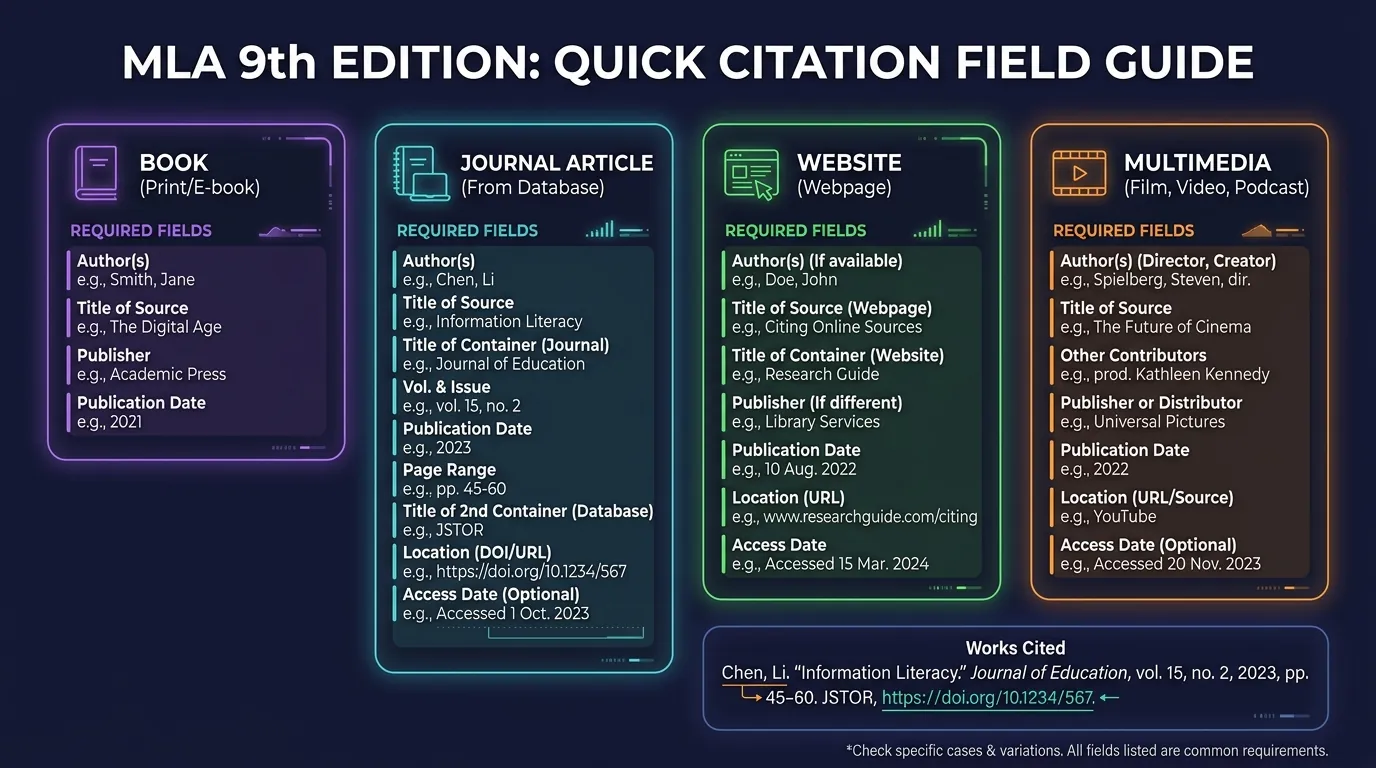
Picking the right type matters a lot. It tells the tool which fields to show you. The table below lists common choices and their key details for each MLA citation source type.
| Source Type | Key Details to Enter |
|---|---|
| Book or ebook | Author, title, publisher, year |
| Journal article | Author, article title, journal, volume, issue, year, pages, DOI |
| Website | Author, page title, site name, date, web address |
| Report or PDF | Author or agency, title, publisher, date |
| Video or podcast | Creator, title, platform, date |
| Image | Artist, title or description, museum or site, date |
How Do You Generate MLA Citations for Books and Ebooks?
Books are the easiest place to start. Enter the ISBN or the title. Then check the author, title, publisher, and year. That’s the core of every book citation MLA entry.
Ebooks follow nearly the same path. If the format matters, add it as the version, like “Kindle ed.” Everything else stays the same. This is how to cite an ebook in MLA without extra fuss.
What Changes When You Cite Journal and Magazine Articles?
Articles carry two titles. The article title goes in quotation marks. The journal or magazine name goes in italics. Then add the volume, issue, date, and page range.
Did you find it through a library database? Add that database as a second container. Then include a DOI if one exists. These steps help you cite a journal article in MLA. They also guide magazine citation MLA and newspaper citation MLA entries.
How to Cite a Journal Article in MLA With a Database
Here’s a model entry:
Brooks, Ella. “Urban Heat Islands.” Journal of City Studies, vol. 12, no. 3, 2025, pp. 44–59. JSTOR, [article DOI].
Notice both containers appear clearly. This format fits most scholarly articles you’ll find through school libraries.
How Can You Format Websites and Individual Webpages in MLA?
A website is the whole site. A webpage is one page within it. Most papers cite single pages. So the page title goes in quotation marks, and the site name goes in italics.
Add the author, date, and location next. If no date appears, add an access date at the end. This is the standard website citation MLA pattern. It helps you cite a website in MLA without mixing up the two levels.
What Should You Enter for Reports, PDFs, and Institutional Publications?
Reports usually come from organizations. The agency can serve as the author. However, if it’s also the publisher, start with the title instead.
Italicize the report’s title. Then add the publisher, date, and location. You don’t need to write “PDF” anywhere in the entry. This advice covers government reports, white papers, and how to cite a PDF in MLA correctly.
How Do Videos, Podcasts, Images, and Other Media Differ in MLA Format?
Media sources name creators rather than authors. An online video lists its creator or uploader. A podcast episode title goes in quotation marks, while the show title goes in italics.
Images need the artist, title, and location. Untitled images get a short description instead. Case study: Picture a student citing a museum painting she viewed online. She lists the artist, title, museum, and website. That’s clear image citation MLA work, and the same logic guides video citation MLA and podcast citation MLA entries.
What Happens When a Source Fits More Than One MLA Category?
Some sources blend types together. A news video sits on a newspaper’s website. A report may exist as both a PDF and a webpage. So which type wins?
Focus on what you actually used. If you watched the video, cite it as a video. MLA’s flexible model lets you choose the most helpful description. This approach handles multimedia sources without confusion.
How Can You Identify the Correct Source Type Before Generating a Citation?
Ask yourself three quick questions. Who created this? What format is it in? Where did you find it? Together, the answers point to the right type.
Look for clues as well. A volume number suggests a journal. A running time suggests media. An agency logo suggests a report. These hints help you identify source type for MLA early. It’s the smartest move in citation format selection.
Choosing an MLA Source Type in a Citation Generator
Pick the closest match from the menu. Then study the fields that appear. If important fields are missing, try a different type. This small habit helps you select source type in citation generator menus with fewer mistakes.
What Should You Do When an MLA Generator Does Not Have Your Exact Source Type?
Choose the nearest general option, often “website” or “other.” Then fill in details by hand. Use MLA’s nine core elements as your checklist.
For unusual items, write a short description in the title slot. For example, “Lecture on cell division.” This is how to cite unusual sources in MLA when a menu simply falls short. The flexible system always has room for your source.
Conclusion
Every source type follows its own pattern, but the core elements never change. Choose the right type first, then fill in the key fields. Watch for second containers, missing dates, and wrong creators. Finally, compare each entry with the source itself. With these habits, you’ll generate MLA citations for different sources smoothly and review source-specific MLA citations like a pro.